I tested LGM-OS, a paid NAS on top of Debian built by one person
I ran it in a VM, pulled a disk from the mirror and checked what it sends over the network. I sent the developer the bugs, he shipped two releases and I re-tested.
A few weeks ago the developer of LGM-OS, a paid NAS operating system built on Debian, wrote to me and offered me a licence in exchange for testing it and sharing my experience with complete freedom. I accepted on one clear condition: I’d write what I found, good and bad. So the licence I’m using here was given to me by him, and I’m saying it upfront so you know where I’m coming from.
This review has a twist: I sent the developer the bugs as I found them and he shipped two fixed releases in a day. So you’ll see two pictures: how it was in 4.27.0, the version I installed, and what changed in 4.28.2, which I tested again with the same tests. He, for his part, has credited me in his release notes; I’m mentioning that too so you can factor it in.
The idea behind LGM-OS is the usual one in this world: you take an old PC or mini PC, install the system on it and turn it into a NAS you manage from the browser, Synology-style but on your own hardware. I set it up in a virtual machine with a system disk and two data disks so I could run the test I really cared about: pulling a disk from the mirror and seeing how it reacts.
Everything here comes from a test install in a VM. It isn’t my home NAS (that’s still an old Synology on DSM 6.2), so you won’t see real transfer speeds: that needs real hardware and real disks.
1. The install: fast and drama-free
This was the first thing I wanted to see, because an installer that fails is scary before you even start. Well, nothing failed. The full install took me about 40 minutes in two stages: a classic installer (language, keyboard, NAS name, which disk the system goes on) of about 15 minutes, then a second stage that downloads and prepares the system and warns it “may take an hour or more”. Mine took about 22.
Two details I liked:
- It identifies disks by serial number, not just by letter (
sda,sdb…). It sounds minor, but when something fails and you have a row of identical disks, knowing exactly which one it is is gold. - It doesn’t dump you at a text console. When it finishes, it starts a graphical screen to create the admin account, with a setup code the machine generates itself so nobody else on your network can get in first and create the account before you.
2. The first-boot wizard
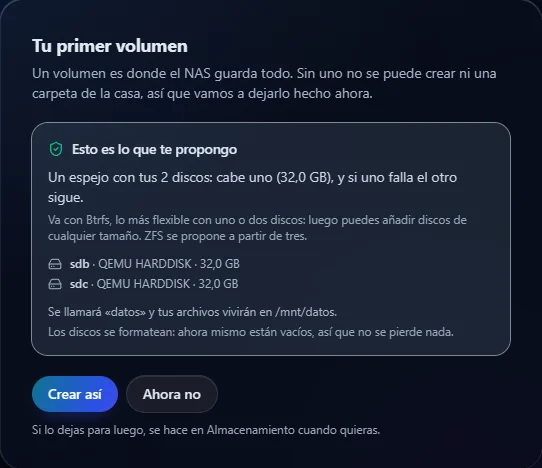
This is where LGM-OS shows it’s built for people who don’t want to wrestle with RAID. Right after logging in, the panel proposed a mirror with the two free disks by itself, created it in seconds and, best of all, explained why in plain language: Btrfs for one or two disks, ZFS from three upwards. Then it created a shared folder to get started. Zero commands.
The desktop is quite reminiscent of Synology’s DSM: a dock at the bottom, health and performance widgets on the right, and an app centre with hundreds of programs that install in one click (they run as Docker containers underneath). I installed a small utility to test it and it took about 50 seconds to be up and running, and it survived a NAS reboot without me touching anything.
3. What it listens on
As with anything that’s going to hold my files, the next step was to check which ports it opens and how locked down it is. LGM-OS does well here:
- The panel is HTTPS only; if you come in over HTTP it redirects you. It supports TLS 1.2 and 1.3, with the old 1.0 and 1.1 disabled.
- File shares use SMBv3 only; the old SMBv1 (the WannaCry one) is refused and there’s no anonymous access.
- I tried asking its API for data without logging in and it answered
401 Not authenticatedfor everything sensitive. The login is really enforced, not just decoration.
It’s the kind of thing a big vendor sometimes overlooks, and here it’s set up properly out of the box.
4. The real test: I pulled a disk from the mirror
You buy a NAS with a mirror precisely for the day a disk dies. So I simulated that day: with the NAS on and running, I hot-unplugged one of the two disks.
The reaction was immediate and clear:
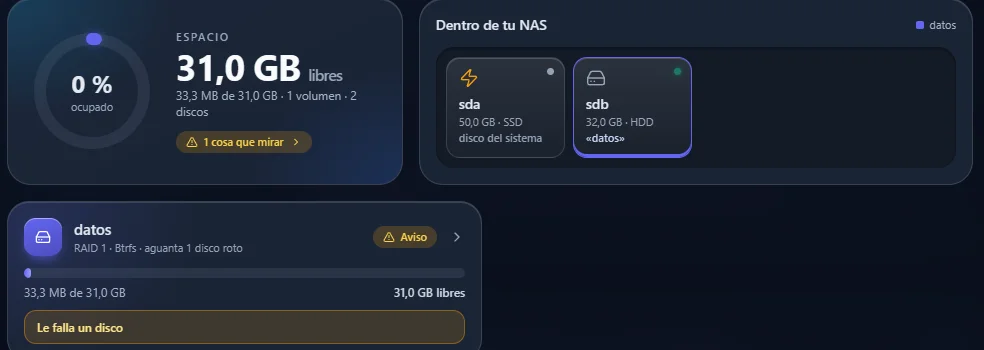
- The health widget flagged it: “A volume is not healthy”.
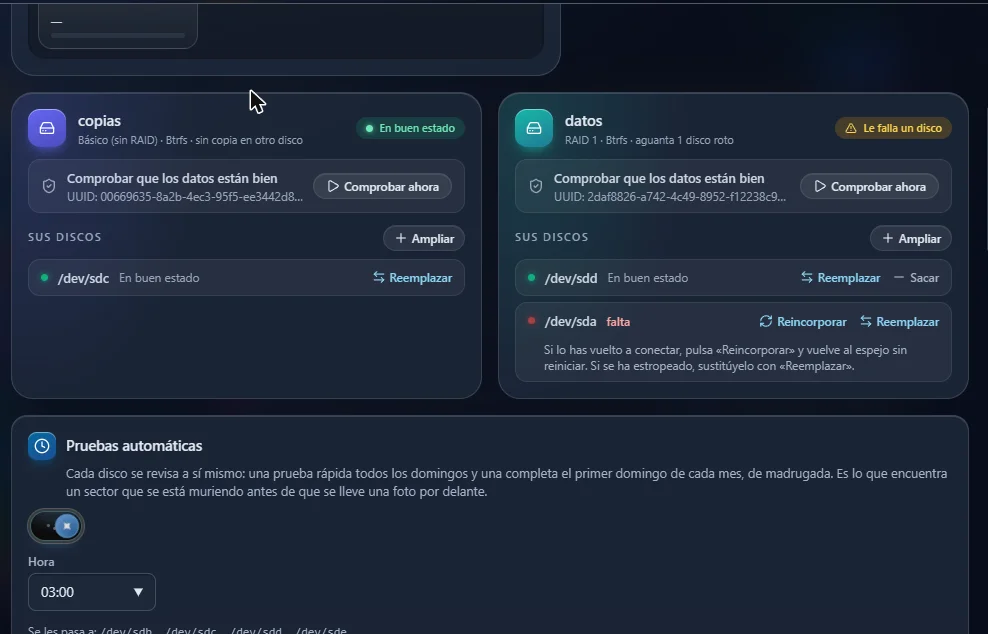
- The volume went degraded, with the warning “A disk is missing” and the missing disk marked, identified by its serial number.
- And the key part: the data was still there and accessible. A two-disk mirror survives one failure; you lose the protection until you fix it, but not your files.
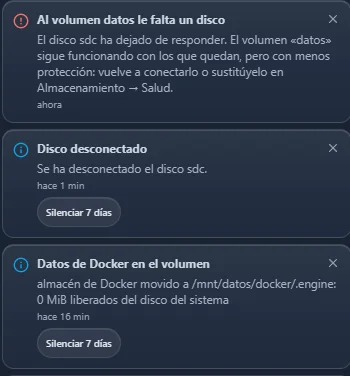
The notifications were written in human language, no jargon: “disk X has stopped responding, the volume keeps working with the remaining ones, but with less protection”. That’s exactly what a home user needs to read.
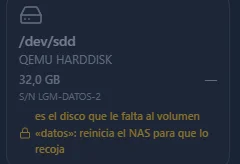
Then I plugged the disk back in, like someone reseating it. In 4.27.0 there was no live repair: the NAS recognised the disk as “the one the volume is missing”, but the message was literally “restart the NAS so it picks it up”. I restarted and the mirror went back to “Healthy” without losing anything, but with downtime.
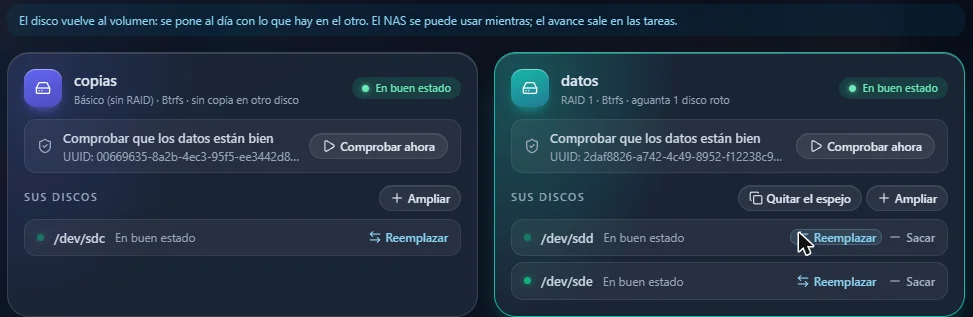
In 4.28.2 I repeated the test and this is fixed. I pulled the disk, put it back, and a “Rejoin” button appeared. I pressed it and the disk was back in the mirror in three or four minutes (with barely half a gigabyte of data), without a restart and with the panel responding the whole time. Afterwards, a full volume check finished in 12 seconds with no errors. On Btrfs the whole mirror is copied to the returning disk; on ZFS, according to the developer, only what changed.
Two issues I’ve passed on:
- The button is hidden. It isn’t on the volume card or in the missing disk’s menu, but at the bottom of Storage → Protection → Health and encryption. The notification does send you there, but if you go looking on your own, it’s hard to find.
- A warning that’s scarier than it should be. On boot I got “read or write errors… data changed, the worst of signs”. Those were the counters from when I unplugged the disk on purpose, under the disk’s old name. The volume check found zero errors, so nothing was broken, but a home user would get quite a fright.
5. Who it phones home to
This is the point I’ll get asked about most, so I’m backing it up with evidence: I captured the NAS’s network traffic while it booted, first on 4.27.0 and then on 4.28.2.
What I saw on 4.27.0 I didn’t like:
- It used Google’s DNS directly. Instead of asking the DNS server your router hands out, it sent all its queries straight to
8.8.8.8. If you filter ads and tracking at home with Pi-hole or AdGuard Home, the NAS bypassed it. - It talked to Google on boot: it resolved
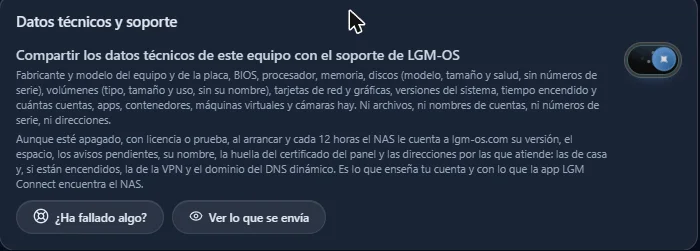
accounts.google.com,update.googleapis.comandclients2.google.com, Chrome’s update and account endpoints. - Telemetry didn’t fully switch off. The “technical data” switch is on by default, and its own text admitted that, even when off, the NAS kept reporting the version, space, name and network addresses every 12 hours.
I told the developer and he explained the reason for each one. The hard-coded DNS was deliberate, after a home filter blocked their domain and left a NAS without updates without saying why; he admits it wasn’t a good idea. The Google domains came from the browser behind the “server screen”, the one that shows the panel on a monitor plugged into the NAS itself, which starts in a VM because it has a graphics card.
What I saw on 4.28.2, with the same capture:
- All DNS goes to the router. Out of 273 queries in seven minutes, none went to
8.8.8.8. And if your filter blocks their domain, the update notice now tells you and explains how to allow it. - No trace of Google. The server-screen browser can no longer reach the network, and you can turn it off from the panel.
- There’s a periodic connection to
1.1.1.1on port 53. It’s the internet connectivity check: it opens the connection and closes it without sending a single byte. I checked and that’s true, although I saw it roughly every minute, not every three as he told me. - The switch now does something. The new text says that, when off, it only sends the version (to check the licence) on boot and every 12 hours. I measured the same boot with the switch on and off: about 20 KB went to their server with it on and about 11 KB with it off. It’s encrypted traffic, so I can confirm it sends less, but not what it sends; you have to take his word for that.
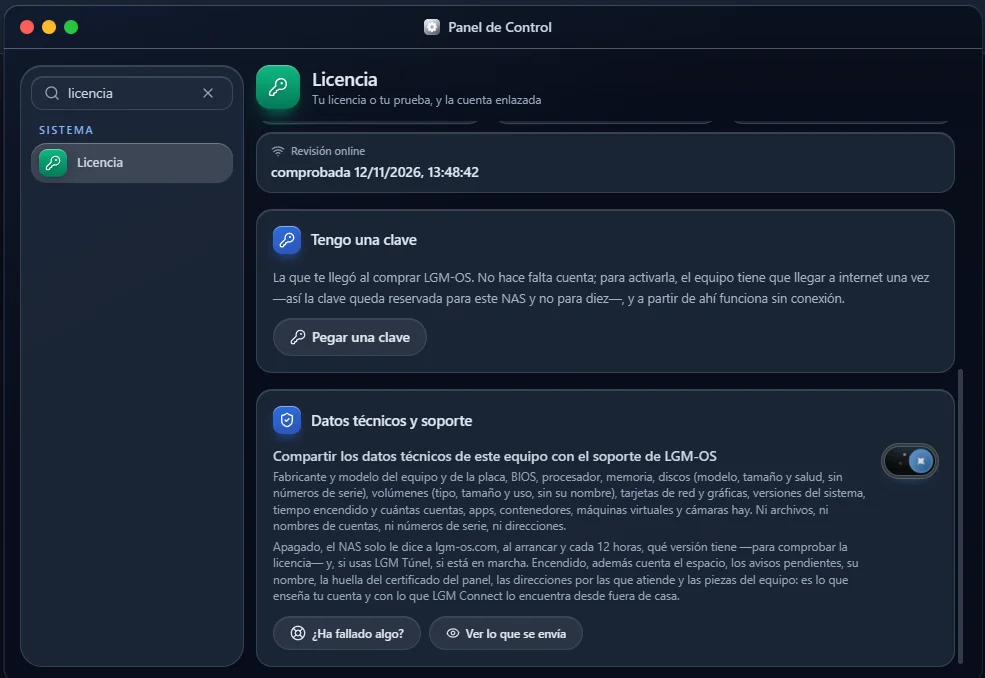
There are still two things I’d change: the switch is still on by default (he justifies it because that’s what lets their remote access service find the NAS from outside your home), and the NAS still calls their server on boot even if you turn it off, because that’s how the licence is checked. For a home user, at least it’s explained now and it does what it says.
6. Virtual machines, cameras and backups
In a second round I tested three more things, and it’s a mixed bag:
- Backups: the best thing it has. It picks up a new disk live, warns you that a backup on the same machine won’t protect you from a fire or theft, and does two things almost no home NAS does: a restore drill (it restores random files and compares them with the original; I got 10 out of 10) and a boot test of backed-up virtual machines, which correctly warned me that the backup of a test VM with no installed system wouldn’t be able to bring it back.

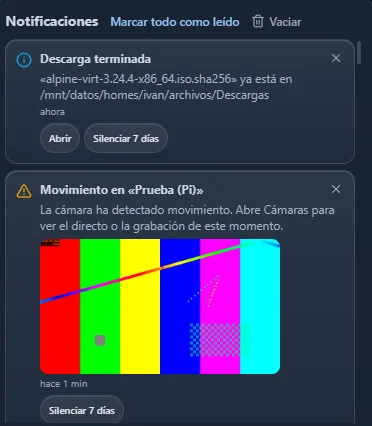
I sent him five issues from this round: the VM wizard overwriting memory and disk when you picked the ISO, downloads not going to the chosen folder, the backup card saying “no backup” when there was one, the motion alert not firing, and a six-minute shutdown with a VM inside. According to the developer, all of them were fixed in 4.28.1, and I re-tested all five on 4.28.2. All fixed:
- VM wizard. I set 3 GB of memory and 12 GB of disk, then picked the Alpine ISO, and the wizard recognised it (“its template has been chosen”) without touching what I had typed.
- Downloads. There are now two separate settings, where yours go and the household folder, and each download shows next to it where it will be saved. I downloaded one file with the default and it ended up in my downloads; another one choosing the Documents folder ended up in Documents. It goes where the screen says.
- Backup card. It now shows correctly.
- Motion alert. With the same test image that didn’t trigger it before, the alert arrived in under a minute, with a snapshot from the camera.
- Shutdown with a VM inside. It went from about six minutes to two: the NAS waits at most 90 seconds for the VM to shut down and then closes it.
I also sent him a sixth one, that Ctrl+C didn’t reach the VM console, and that one was my mistake: I ran those tests with a tool that drives the browser on its own, and it turns out it drops modifier keys. I repeated it by hand with the keyboard and Ctrl+C works perfectly. Lesson learned: before reporting a keyboard bug, test it with a keyboard.
7. Rough edges
In 4.28.2 the notification link (which used to point to a “Health” tab that didn’t exist) and the Control Panel search, which now finds “volume” or “disk”, are fixed. Still pending:
- The apps you install are reachable over plain HTTP on the local network, with no password. The developer has decided not to change this: he says putting them behind the panel login would break the TV and phone apps, that they’re only visible from home, and that the ones holding anything important ask for their own password. It’s common in these systems, but worth knowing.
- If the NAS shuts down with the panel open in the browser, the tab says “There’s a new version of the panel, it’s loading by itself” and keeps spinning. There’s no new version: the NAS just isn’t responding, and it should say so.
- The “See what’s sent” button shows the full support report even with the switch off, instead of the little that goes out in that case.
What not to do
- Trust the mirror and forget the backup. A RAID1 covers you if a disk dies, but not if you delete something by mistake or ransomware gets in. A mirror isn’t a backup; keep making your backups somewhere else.
- Judge the speed from a virtual machine. To measure real transfers you need to test it on real hardware with real disks.
- Take a privacy promise at face value without measuring it. A switch’s text tells you what the vendor promises; capturing the network tells you what actually happens. Here, luckily, they matched after the fix.
Summary
- LGM-OS installs in about 40 minutes without a single failure, with a wizard that sets up the mirror for you.
- The network side is well locked down: HTTPS only, SMBv3 only, no anonymous access and a real login on the API.
- It handles a disk failure brilliantly, and since 4.28 it puts the disk back into the mirror without a restart (although the button is hidden).
- Backups, with restore drills and VM boot tests, are the best thing it has.
- In 4.27.0 it used Google’s DNS bypassing your filter and talked to Google on boot; in 4.28.2 I measured it and it no longer does. It still calls home for the licence and telemetry is on by default, although turning it off now does reduce what goes out.
For something built by one person, LGM-OS pleasantly surprised me. But what convinced me most wasn’t the product itself, it was how he responded: I sent him the bugs, packet captures included, and within a day he had two fixed releases and an explanation for each one. I still wouldn’t trust it with my home data without seeing it perform on real hardware and without the telemetry switch being off by default, but I’ll keep testing it. When I do, I’ll tell you about it.
Did it stick?
Three quick questions. Each right answer is worth 10 XP.